
Dell PowerEdge R730xd Server
At Cloud Ninjas we offer the opportunity of you configuring the Dell PowerEdge R730xd, with a catalog of different possible chassis and the best prices so you can upgrade your business at the best price for performance. With dual Intel Xeon Gen1 & Gen2 scalable CPUs and 24 memory modules possible, the R730xd is a 2U Storage powerhouse and some of the most used servers in the market due to its performance, scalability, and storage capabilities due to its rear-flex bay that add a secondary storage solution to this server.
- 2U Rackmount
- Storage Powerhouse
- Intel Xeon E5-2600v3 & E5-2600v4
- Scalable performance

Configure your Dell PowerEdge R730xd Server
Dell PowerEdge R730xd Server Specifications
Cloud Ninjas' Dell PowerEdge R730xd Specifications
Chassis
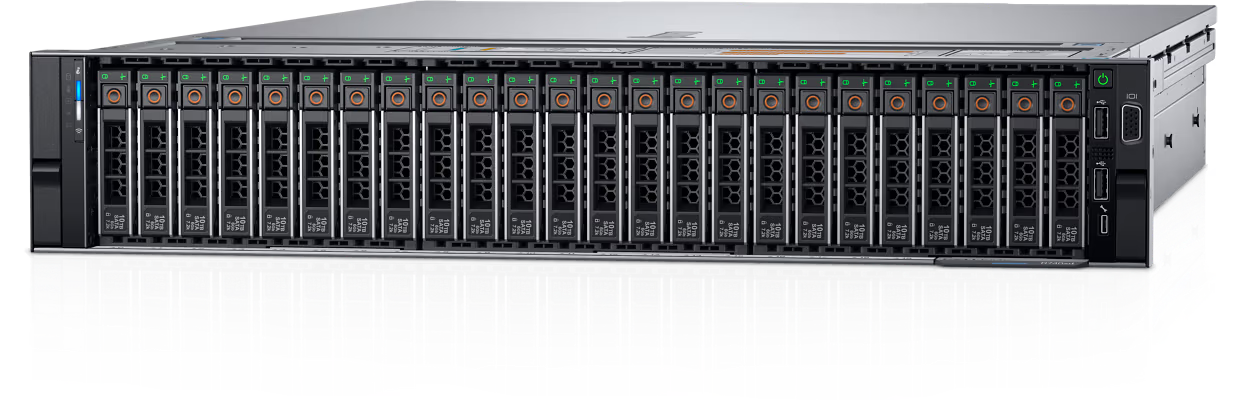
The PowerEdge R730xd server is a Dell 13th 2U server which builds upon the PowerEdge R730. The R730 and R730xd are nearly identical, but the R730xd is the go-to option for storage. There are two different chassis options for the PowerEdge R730xd which are the 12 Bay LFF and 24 Bay SFF. The main differences between each option is total number of drives bays, as well as the form factor of the drives they accept. Each PowerEdge R730xd chassis option supports hot-swap drives and power supplies. This means that either the drive or power supply can be removed while the system is powered on. It is important to note, that when removing a power supply, one must remain the system, for the system to remain powered on.
Chassis Options
The three chassis options are the 12 Bay LFF and 24 Bay SFF. The 12 Bay LFF chassis for the PowerEdge R730xd supports a total of twelve 3.5” SAS, SATA, or SDD drives. The 24 Bay SFF chassis on the other hand can accept a total of twenty-four 3.5” SAS, SATA, or SSD drives. As you tell, these chassis can hold a lot of drives! Each of the chassis’ options have potential to add an additional two drive bays to the back of the system. To do this, you will need an additional kit that needs to be installed to the back of the system, above the power supply bays.
PCIe Slots
PCIe slots and riser are the same across each R730xd chassis option. There is a total of six PCIe slots. Three of those slots accept high profile cards, while the other three accept low profile cards. There is a total of three riser cards for the PowerEdge R730xd.
Processing Power
The Dell PowerEdge R730xd server utilizes Intel Xeon E5-2600 v3 and E5-2600 v4 series processors and can handle a maximum of twenty-two cores per processor.
Intel Xeon E5-2600 v3 Series Processors
| CPU | Step Code | Cores | Frequency |
|---|---|---|---|
| E5-2603v3 | SR20A | 6 | 1.60 GHz |
| E5-2608Lv3 | SR21P | 6 | 2.00 GHz |
| E5-2609v3 | SR1YC | 6 | 1.90 GHz |
| E5-2618Lv3 | SR200 | 8 | 2.30 GHz |
| E5-2620v3 | SR207 | 6 | 2.40 GHz |
| E5-2623v3 | SR208 | 4 | 3.00 GHz |
| E5-2628Lv3 | SR1XZ | 10 | 2.00 GHz |
| E5-2630v3 | SR206 | 8 | 2.40 GHz |
| E5-2630Lv3 | SR209 | 8 | 1.80 GHz |
| E5-2637v3 | SR202 | 4 | 3.50 GHz |
| E5-2640v3 | SR205 | 8 | 2.60 GHz |
| E5-2643v3 | SR204 | 6 | 3.40 GHz |
| E5-2648Lv3 | SR1XW | 12 | 1.80 GHz |
| E5-2650v3 | SR1YA | 10 | 2.30 GHz |
| E5-2650Lv3 | SR1Y1 | 12 | 1.80 GHz |
| E5-2658v3 | SR1XV | 12 | 2.20 GHz |
| E5-2658Av3 | SR27T | 12 | 2.90 GHz |
| E5-2660v3 | SR1XR | 10 | 3.30 GHz |
| E5-2667v3 | SR203 | 8 | 3.20 GHz |
| E5-2670v3 | SR1XS | 12 | 2.30 GHz |
| E5-2680v3 | SR1XP | 12 | 2.50 GHz |
| E5-2683v3 | SR1XH | 14 | 2.00 GHz |
| E5-2690v3 | SR1XN | 12 | 2.60 GHz |
| E5-2695v3 | SR1XG | 14 | 2.30 GHz |
| E5-2697v3 | SR1XF | 14 | 2.60 GHz |
| E5-2698v3 | SR1XE | 16 | 2.30 GHz |
| E5-2699v3 | SR1XD | 18 | 2.30 GHz |
Intel Xeon E5-2600 v4 Series Processors
| CPU | Step Code | Cores | Frequency |
|---|---|---|---|
| E5-2603v4 | SR2P0 | 6 | 1.70 GHz |
| E5-2608Lv4 | SR2P9 | 8 | 1.60 GHz |
| E5-2609v4 | SR2P1 | 8 | 1.70 GHz |
| E5-2618Lv4 | SR2PE | 10 | 2.20 GHz |
| E5-2620v4 | SR2R6 | 8 | 2.10 GHz |
| E5-2623v4 | SR2PJ | 4 | 2.60 GHz |
| E5-2628Lv4 | SR2NC | 12 | 1.90 GHz |
| E5-2630Lv4 | SR2P2 | 10 | 1.80 GHz |
| E5-2630v4 | SR2R7 | 10 | 2.20 GHz |
| E5-2637v4 | SR2P3 | 4 | 3.50 GHz |
| E5-2640v4 | SR2NZ | 10 | 2.40 GHz |
| E5-2643v4 | SR2P4 | 6 | 3.40 GHz |
| E5-2648Lv4 | SR2ND | 14 | 1.80 GHz |
| E5-2650Lv4 | SR2N8 | 14 | 1.70 GHz |
| E5-2650v4 | SR2N3 | 12 | 2.20 GHz |
| E5-2658v4 | SR2NB | 14 | 2.30 GHz |
| E5-2660v4 | SR2N4 | 14 | 2.00 GHz |
| E5-2667v4 | SR2P5 | 8 | 3.20 GHz |
| E5-2680v4 | SR2N7 | 14 | 2.40 GHz |
| E5-2683v4 | SR2JT | 16 | 2.10 GHz |
| E5-2687Wv4 | SR2NA | 12 | 3.00 GHz |
| E5-2690v4 | SR2N2 | 14 | 2.60 GHz |
| E5-2695v4 | SR2J1 | 18 | 2.10 GHz |
| E5-2697Av4 | SR2K1 | 16 | 2.60 GHz |
| E5-2697v4 | SR2JV | 18 | 2.30 GHz |
| E5-2698v4 | SR2JW | 20 | 2.20 GHz |
| E5-2699v4 | SR2JS | 22 | 2.20 GHz |
| E5-2699Rv4 | SR31X | 22 | 2.20 GHz |
| E5-2699Av4 | SR30Y | 22 | 2.40 GHz |
Memory
DIMM Slots & Channels
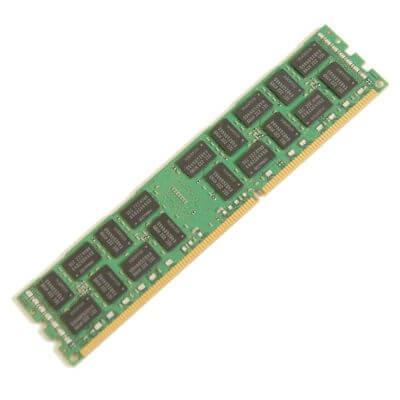
The Dell PowerEdge R730xd server has a total of 24 DDR4 DIMM slots. There are 8 total memory channels. Each memory channel consists of 3 DIMM slots.
Memory Types & Module Capacities
The R730xd accepts DDR4 memory and can take either ECC Registered memory (RDIMMs) or Load Reduced memory (LRDIMM). Module capacities of 4GB, 8GB, 16GB, 32GB, 64GB, and 128GB can be used within this system. 64GB and 128GB modules can only be used with one type of RAM, which is Load Reduced. With LRDIMMs, you can reach an overall greater capacity than if you were to use RDIMMs.
Max Configurations
With RDIMMs, the maximum possible RAM you can reach is 768GB with a 24x32GB configuration. With LRDIMMs, you can reach a max capacity of 3TB with a configuration of 24x128GB.
Supported Memory Speeds
The memory speeds that the R730xd accepts varies depending on the processor that you are using. If your system has an Intel Xeon E5-2600 v3 processor, then fastest memory speed you can achieve is 2133MT/s. You can put in higher speeds, such as 2400MT/s, 2666MT/s, 2933MT/s, and 3200MT/s, but these will all clock down to 2133MT/s. Alternatively, if your system is using E5-2600 v4 processors, the R730xd’s true fastest speed will be 2400MT/s. Again, you can put in speeds greater than 2400MT/s, but if you do, the modules will clock down to 2400MT/s.
Storage
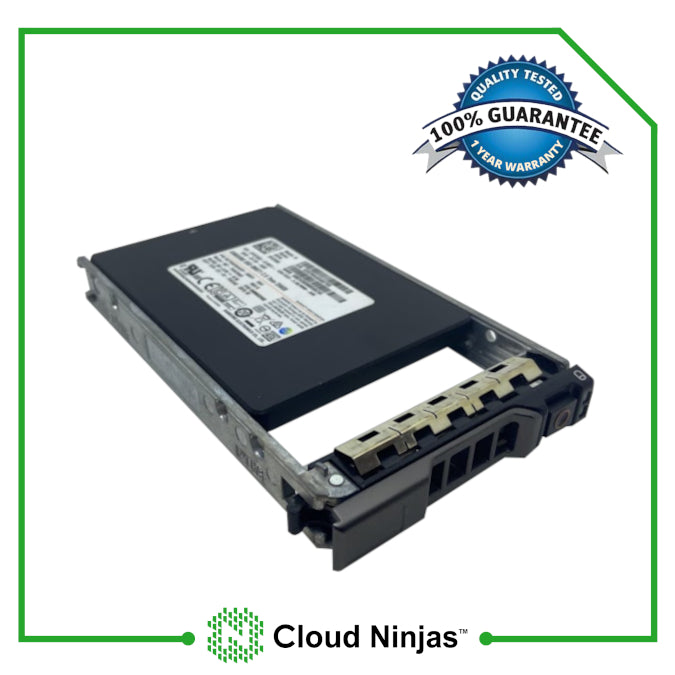
The drives you use for your PowerEdge R730xd will depend on what chassis you have. If you have a 24 Bay SFF chassis, then you can use 2.5” SAS, SATA, or SDD drives. If you have an 12 Bay LFF chassis, then you can only use 3.5” SAS, SATA, or SSD drives. Each chassis supports hot-swap drives, meaning you can remove and/or add drives while the machine is powered on.
Supported Drives
| Type | Max Capacity (Per Drive) 2.5" | Speeds |
|---|---|---|
| SAS | 2.4 TB | 10k or 15k |
| SATA | 2 TB | 7.2k |
| SSD | 7.68 TB | 3 GB/s, 6 GB/s, 12 GB/s |
| Type | Max Capacity (Per Drive) 3.5" | Speeds |
|---|---|---|
| SAS | 12 TB | 10k or 15k |
| SATA | 12 TB | 7.2k |
| SSD | 7.68 TB | 3 GB/s, 6 GB/s, 12 GB/s |
NVMe Options & Upgrades
NVMe is an awesome storage solution that is in demand across datacenters around the globe. People are always looking for ways to implement NVMe within their system. NVMe drives are much faster than traditional drives. Generally, there are three types of NVMe solutions. These solutions are U.2, M.2, and PCIe. The R730xd supports two of these options: PCIe and M.2.
PCIe NVMe
The PowerEdge R730xd can accept PCIe NVMe drives, but there are some limitations. Firstly, the card must have Dell firmware. A OEM PCIe NVMe drive without Dell firmware will not work. Even if you have a card with Dell firmware, there are a lot of limitations. You won’t be able to install an operating system on it, you cannot use in a RAID configuration, and you cannot install a virtual machine on it. Really the only thing you can use the drive for is extra storage. For an NVMe PCIe drive to work with the R730xd, slot disablement in the BIOS must be enabled.
M.2 NVMe
M.2 NVMe is by far the best NVMe solution for the PowerEdge R730xd server. M.2 has a lot more possibilities than the PCIe solution. With the M.2, you can install an operating system on it, can install a virtual machine on it, and you can pretty much do anything that a normal drive can do. There is no M.2 connection on the R730xd’s motherboard, so you must use a PCIe to M.2 adapter in order to use M.2 drives. One thing to note is that 14th gen Dell BOSS cards are not backwards compatible and will not work with the R730. For this solution to work, you must enable slot bifurcation in the BIOS. If there is not slot bifurcation setting on your server, you will have to update your BIOS.
Power Supplies
How Many Power Supplies does the R730xd Take?
The Dell PowerEdge R730xd Server can accept a total of two hot-swap power supplies. Because the power supplies are hot-swap, you can remove and/or add one from the system while it is powered on. This will only work in one power supply remains connected to the server.
Wattage Options
There are three power supply wattage options for the PowerEdge R730xd: 495W, 750W, 1100W. All three wattages are great choices, but the best one for your system depends on your application. Systems that utilize more high-end components are generally going to require more power to operate. Also, if your server performs resource intensive tasks, then there will be more of a demand for power. In both cases, it is a good idea to go with a 750W or 1100W PSU.
Voltage
One thing to be aware of is the power supply’s voltage. You want to make sure you purchase a power supply with the voltage that is supported you connection. Voltage options include 110V and 220V. If you use a 220V power supply, but only have a 110V connection, the system will not power on. Before purchasing a power supply for your server, find out what connection you need, and then make sure the power supply supports that connection.
RAID Options
| RAID Options | RAID Levels | Cache | Drive Speeds | PCIe Generation | RAID Hardware |
|---|---|---|---|---|---|
| S130 onboard software | 0,1,5,10 | None | 6 Gb/s SATA 12 Gb/s SAS |
PCIe 3.0 | Software |
| HBA330 Mini Mono | Passthrough | None | 6 Gb/s SATA 12 Gb/s SAS |
PCIe 3.0 | Hardware |
| H330 Mini Mono | 0,1,5,10,50 | None | 6 Gb/s SATA 12 Gb/s SAS |
PCIe 3.0 | Hardware |
| H730 Mini Mono | 0,1,5,6,10,50,60 | 1GB | 6 Gb/s SATA 12 Gb/s SAS |
PCIe 3.0 | Hardware |
| H730p Mini Mono | 0,1,5,6,10,50,60 | 2GB | 6 Gb/s SATA 12 Gb/s SAS |
PCIe 3.0 | Hardware |
| H830 PCIe Adapter | 0,1,5,6,10,50,60 | 2GB | 6 Gb/s SATA 12 Gb/s SAS |
PCIe 3.0 | Hardware |
Network Interface Card Options
If you want to connect your PowerEdge R730xd to the Internet, you will need to install a network card. There is a variety of different network cards you can install into your R730xd. You can either install a daughter card or a PCIe card. On the back of the motherboard, there is a slot for a daughter card, which is nice since you don’t use up a PCIe slot. You can get cards that support Ethernet, Fiber, or both. You can also get cards with speeds of 1 gigabit, 10 gigabit, or both.
| Network Card Options |
| Dell Broadcom 5719 Quad-Port 1GbE RJ45 NIC |
| Dell Broadcom 5720 Dual-Port 1GbE RJ45 NIC |
| Dell Broadcom 57810S Dual Port 2 10Gb DA/SFP+ Network Adapter |
| Dell Broadcom 57810S Dual Port 10GbE RJ45 Network Adapter |
| Dell Emulex LPE12000 Single Port 8Gb FC |
| Dell Emulex LEP12002 Dual Port 8Gb FC |
| Dell Emulex LPE16000B Single Port 16Gb FC |
| Dell Emulex LPE16002B Dual Port 16Gb FC |
| Dell Emulex OCE14102-U1-D Dual Port 10GbE SFP |
| Dell Intel I350 Quad Port 1Gb RJ45 |
| Dell Intel I350 Dual Port 1Gb RJ45 |
| Dell Intel X540 Dual Port 1Gb RJ45 |
| Dell Mellanox ConnectX 3 Dual Port 10Gb SFP+ |
| Dell Mellanox ConnectX 3 Dual Port 40Gb QSFP |
| Dell QLogic QLE2560 Single Port 8Gb FC |
| Dell QLogic QLE2562 Dual Port 8Gb FC |
| Dell QLogic QLE2660 Single Port 16Gb FC |
| Dell QLogic QLE2662 Dual Port 16GB FC |
Systems Management Solutions
The Dell PowerEdge R730xd Server utilizes the Integrated Dell Remote Access Controller 8 (iDRAC8), which allows you to easily manage your Dell server. The iDRAC8 web interface provides a variety of useful information and features, that make managing your Dell server an easy task. Features include, but are not limited to hardware monitoring, power control, remote console, control over system settings, firmware update control, storage management, and much more. You can access the iDRAC8 web interface, by setting the iDRAC IP in system setup, and searching the IP in a web browser.
Supported Operating Systems:
The PowerEdge R730xd supports a wide variety of operating systems which ranges from different distributions of Linux, VMware, and Windows Server. These operating systems are:
- ⦿ Citrix XenServer 6.5
- ⦿ Citrix XenServer 7.0
- ⦿ Novell SuSE Linux ES 11
- ⦿ Red Hat® Enterprise Linux 6
- ⦿ Red Hat® Enterprise Linux 7
- ⦿ Red Hat® Enterprise Linux 8
- ⦿ SUSE Linux ES 12
- ⦿ SUSE Linux ES 15
- ⦿ VMware ESXi 5.1
- ⦿ VMware ESXi 5.5
- ⦿ VMware ESXi 6.0
- ⦿ VMware ESXi 6.5
- ⦿ VMware ESXi 6.7
- ⦿ VMware ESXi 7.0
- ⦿ Window Server 2008 R2
- ⦿ Window Server 2012
- ⦿ Window Server 2012 R2
- ⦿ Window Server 2016
- ⦿ Window Server 2019 LTSC
Technical Information
Technical Information Overview
The Dell PowerEdge R730xd 2U Rackmount Server is loaded with options and features which is great in terms of customization and scalability. With the great capabilities of the PowerEdge R730xd, it can be hard to navigate. Because of this we have group together manuals and guides directly from Dell, so you have all the information you need to configure, upgrade, or troubleshoot your Dell PowerEdge R730xd Server.
Technical Guide
Need help troubleshooting your R730xd? The R730xd technical guide is a great place to start: View PowerEdge R730xd Technical Guide
Installation and Service Manual
Learn the ins and outs of your R730xd with the Owner’s Manual: View PowerEdge R730xd Owner’s Manual
Integrated Dell Lifecycle controller
Configure and setup your R730xd within Dell’s integrated Lifecycle controller: View PowerEdge R730xd Lifecycle Controller Setup Guide
Dell R730 BIOS Upgrade EFI File Download
Upgrade your BIOS Via an EFI File: Download PowerEdge R730xd BIOS Upgrade EFI File
Cloud Ninjas' Videos for Dell PowerEdge R730xd Server
- CPUs
- Memory
- Drives
- NVMe
- Different Chassis Types
- RAID
- BIOS
- iDRAC
- Mass Updates
- How to set IP Address
- How to install VMware ESXI 7.0.3
- Network Cards
- Power Supplies
- How to Rack
- How to Install Windows Server 2016
CPUs
Memory
Drives
NVMe
Different Chassis Types
RAID
BIOS
iDRAC
Mass Updates
How to set IP Address
How to install VMware ESXI 7.0.3
Network Cards
Power Supplies
How to Rack
How to Install Windows Server 2016
Customer's Comments and Reviews
Related Systems
- Choosing a selection results in a full page refresh.
- Press the space key then arrow keys to make a selection.